Troubleshooting
This page helps you resolve Chatbox feature issues, model behavior problems, and version compatibility concerns.
Features Not Working
Web Search Not Working
Chatbox supports the following search services:
- Bing Search: Free, but may be blocked in certain regions or network environments
- Tavily Search: Offers a free tier, requires signing up for an API key
- Chatbox AI Search: A built-in search service for registered Chatbox AI users, includes a free quota
Solutions:
- If Bing search is not working, it may be due to network restrictions — try switching to Tavily or Chatbox AI Search
- Confirm the search service is properly configured (API key, etc.)
- If using Chatbox AI Search, make sure you are logged into your Chatbox AI account
File Upload Not Working
Chatbox supports uploading files in conversations and uploading files to Knowledge Base.
- Single file size: under 50 MB
- Files in one conversation upload: up to 20 at a time
- Document parsers: built-in parser, Chatbox AI, MinerU
Solutions:
- Check whether your account still has enough compute points for file parsing
- Desktop: go to Recent Usage
- Mobile: go to Settings → Chatbox AI
- If you do not have enough points, visit the Pricing page to purchase a plan
-
For Knowledge Base uploads, if you use Chatbox AI, first make sure you are signed in. Knowledge Base is unavailable when you are not signed in. If you use your own API key, make sure the embedding model and reranking model are configured correctly. Missing model configuration can prevent Knowledge Base from working.
-
Check Document Parser settings: Settings → Document Parser → default to Chatbox AI. If you set it to MinerU, you need to add a MinerU API key.
Image Upload Not Working
Some AI models support direct image understanding (vision capability), while others do not. Chatbox AI provides an automatic OCR feature for non-vision models, which recognizes text in images and sends it to the model as text.
Models with vision support examples:
- GPT 5.5
- Claude Opus 4.8 / Claude Sonnet 4.6
- Gemini 3.5 Flash
Models without vision support examples:
- DeepSeek V4 Pro
- DeepSeek V3.2
- DeepSeek R1
- GLM-5.2
Solutions:
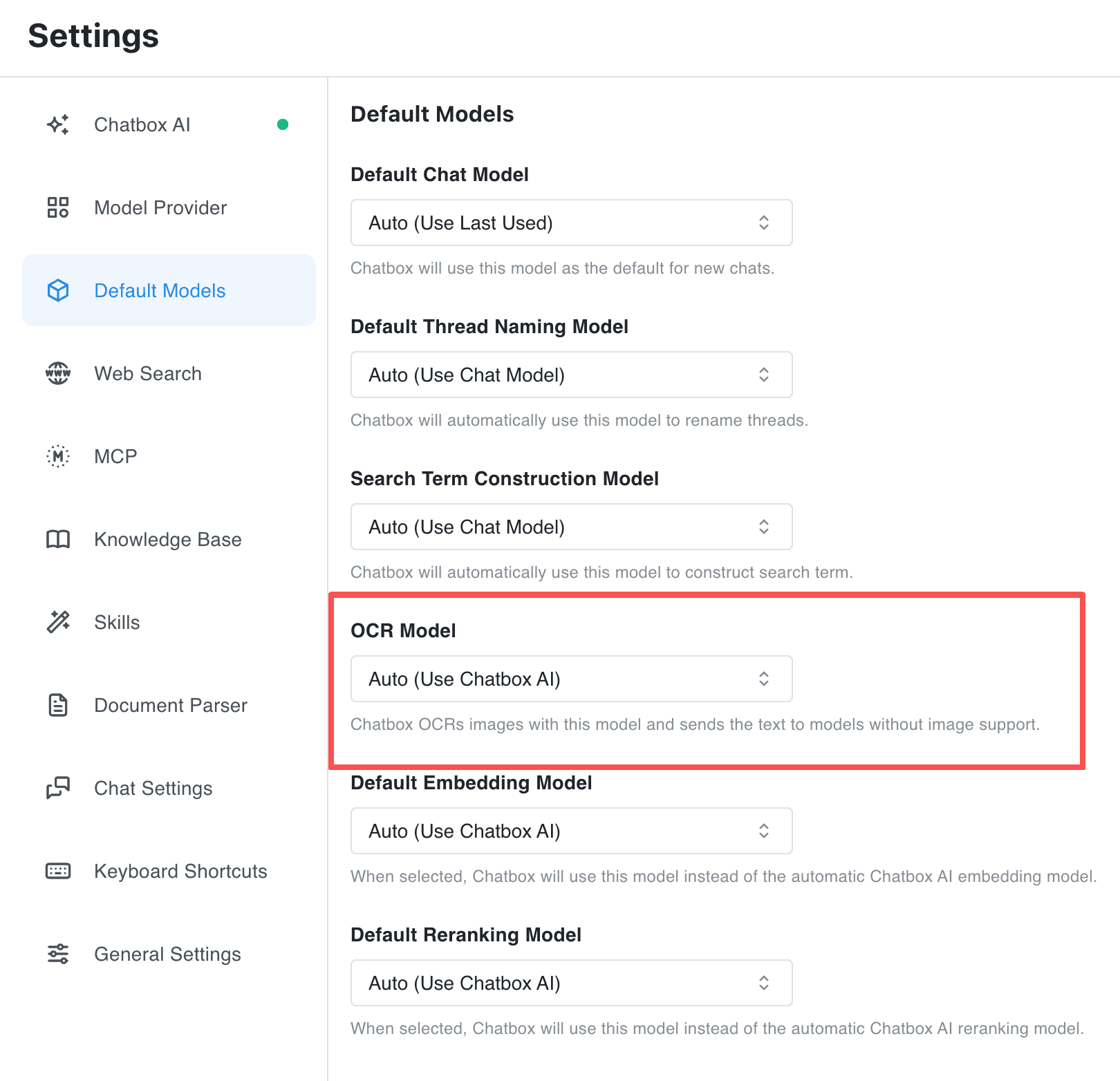
- Make sure you are signed in to Chatbox AI. The default OCR model starts automatically for Chatbox AI. If you use your own API key, configure the OCR model in Default Models
- If you need the model to directly understand image content, switch to a model with vision support
- For non-vision models, Chatbox AI will automatically OCR the text in images and send it to the model
- Confirm image format is correct (JPG, PNG, and other common formats)
- Confirm image size is within limits
Model Behavior Issues
Response Speed is Slow
Some models are inherently slower
Certain models (like OpenAI's o3) have complex reasoning processes and longer response times. This is normal.
Other possible causes:
- Unstable network connection
- Server load peaks
- Conversation context too long
Optimization suggestions:
- Try starting a new conversation
- Reduce context message count
- Choose a faster-responding model
Poor Output Quality
Model selection matters
Different models excel at different tasks.
Recommendations:
| Task Type | Recommended Models |
|---|---|
| Daily conversation | GPT 5.5, Claude Sonnet 4.6 |
| Coding | Claude Sonnet 4.6 Thinking, DeepSeek R1 |
| Creative writing | Claude Opus 4.8, Grok 4 |
| Simple Q&A | Chatbox AI 4, Claude Haiku 4.5 |
Other optimization methods:
- Adjust your Prompt with clearer instructions
- Provide sufficient context information
- Try different Temperature settings
Repetitive Output
Symptoms: AI keeps repeating the same content.
Solutions:
-
Update to the latest version
- This may be a known bug that has been fixed
- Check if updates are available
-
Adjust parameters
- Lower the Temperature value
- Try adjusting Frequency Penalty (if available)
-
Switch models
- Some models may have this issue in certain situations
- Try switching to another model
AI Refuses to Answer
Possible causes:
- Question triggered model's safety filters
- Question beyond model's capability range
Suggestions:
- Try rephrasing your question
- Break the question into smaller parts
- Use a different model
Version Compatibility
Windows 7 Support
Current status:
The latest version of Chatbox may not support Windows 7.
Solutions:
- Use an older version of Chatbox
- Download a compatible version from the official website's version history page
- We recommend upgrading your operating system for the best experience and security updates
Mobile vs Desktop Data Format
Note:
- Mobile and desktop data formats may differ
- Compatibility issues may occur when importing data across platforms
Recommendations:
- Use the same platform for backup and recovery
- Test with small amounts of data first when migrating across platforms
- Watch for compatibility improvements in version updates
Issues After Update
If features are abnormal after updating:
- Try completely quitting and restarting the app
- Clear app cache (Note: don't clear data)
- If issues persist, you may need to roll back to the previous version
- Report the issue through in-app feedback
Getting More Help
If none of the above methods solve your problem:
- Visit Help Center: chatboxai.app/help-center
- In-app feedback: Use the in-app feedback feature to describe your issue in detail
- Provide information: When reporting issues, please include:
- Chatbox version number
- Operating system version
- Model being used
- Detailed description and steps to reproduce the problem